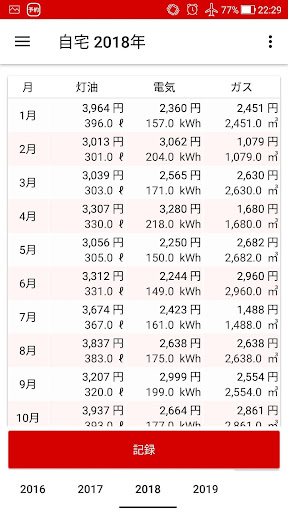
You can record the amount and amount of kerosene used.
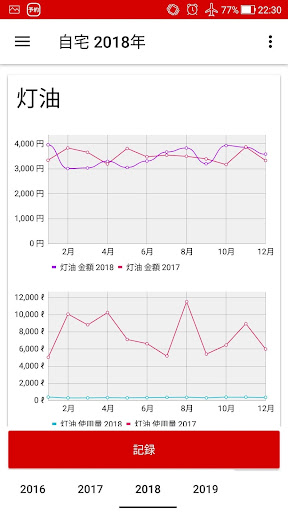
If you record the monthly kerosene and electricity bills and gas bills, they will be displayed in a graph.
You can check the total of kerosene, electricity, and gas for one year.
You can add up to 9 free items.
It is possible to record utility bills by dividing them into multiple residences (up to 6).
By checking the kerosene cost with a bar graph and a line graph, you can understand which month the usage / amount is high.
1. Tap the "Record" button.
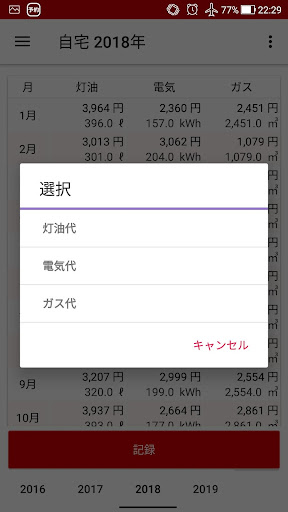
2. Select one from kerosene, electricity, and gas.
2. Select the year and month.
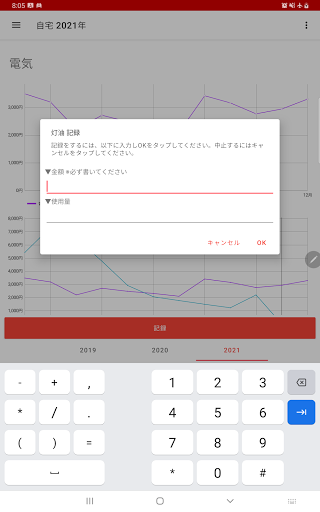
3. Enter the amount and usage and tap OK.
▼ Supports the display of the line graph of the previous year
The letters "kerosene", "electricity", "gas", etc. at the top of each graph
If you tap it, you can display the line graph of the previous year at the same time.
▼ Record contents of the previous year
If you have a record for multiple years
To check the recorded contents of the previous year
On the screen where the graph etc. are displayed
Scroll / swipe sideways or
When you tap the "Lower year" button
You can check and edit the recorded contents of the previous year.
▼ To edit the recorded contents
To edit the recorded amount / usage
When you tap the table
It can be edited.
▼ Free items
To add free items
You can add it in [Free item settings] from the settings on the upper right.
* Up to 9
▼ How to set free items
1. You can set free items by tapping [Free item settings] from the option menu on the upper right.
2. In the initial state, all free items 1 to 9 are in the [disabled] state.
3. Tap any of the free items 1 to 9 and change the free item to [Enabled]. The [Free item] button will be displayed on the top screen and recording will be possible.
4. In [Free item settings], you can set the item name, usage unit, graph display / non-display, etc. as you like.
[Example of procedure for adding communication charges to free items]
1. Tap "Free item settings" in the upper right corner
2. Tap the setting of free item x
3. Turn on the "free item x" at the top
4. The screen will return, so tap the free item x setting again.
5. Tap the item name and enter "Communication fee"
▼ Function to display the total for one month
If you tap "Monthly total" at the top right of the screen
You can view the total page.
▼ Model change data transfer
Tap "Model change data transfer" in the menu to display the following selection screen.
-Create file (create backup file for model change)
-Restore (Restore data from backup file)
Step A. Steps to create a backup file
1. Tap "Model change data transfer" in the menu.
2. Tap Create File.
3. Tap "Create File" on the confirmation screen.
4. Tap "Select App" on the send screen.
5. Tap "Save to Drive".
Step B. Restore (Restore data from backup file in step A)
1. Start Google Drive on your new smartphone / tablet, select the backup file and tap "Download" from the menu.
2. Install this app on your new smartphone / tablet from google play. Launch the app.
3. Tap "Model change data transfer" in the menu.
4. Tap Restore.
■ If the app does not open after changing models
Try steps 1-5 below on your new smartphone / tablet.
Step 1. Press and hold / long tap the app icon.
Step 2. Tap the app information.
Step 3. Tap "Storage and cache".
Step 4. Tap "Erase Storage".
Step 5. Start the application and restore from "Model change data transfer"-> Restore-> File selection.